Description
Users with the Org. Administrator (Organization Administrator) role can manage users within their own organization via the Users (User Management) module.

The user management feature provides the following functionalities:
- Manage users within your own organization (add, edit, and delete)
- Change user access levels (roles)
- Assign existing restaurants to users
Availability
| Subscription | Basic |
| Scope | All markets |
| Limitation | Only for users in the role Org. Administrator |
Add a New User
To create a new user, please follow these steps:
- Click on the Add User button.
- Fill in all required fields. These include:
- Username/Email Address: Enter the new user’s email address.
- First Name: Enter the user’s first name.
- Last Name: Enter the user’s last name.
- Password: Create a secure password for the new user and confirm it.
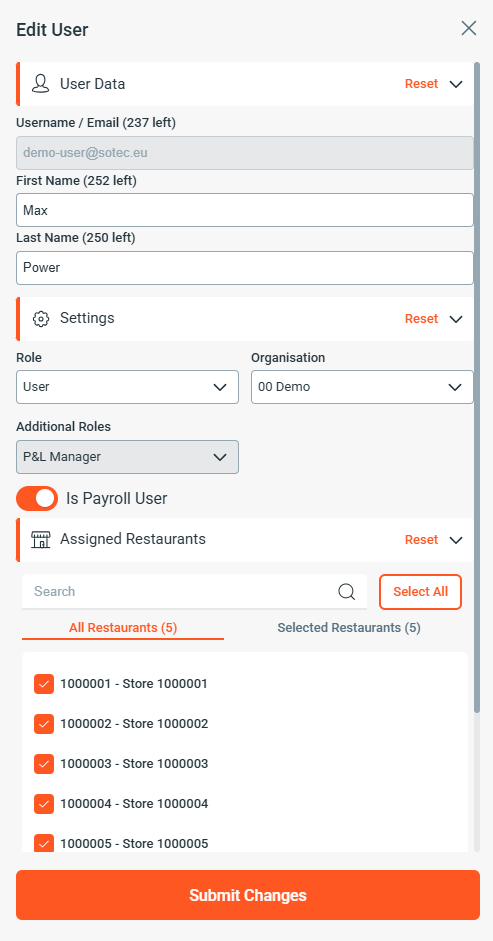
- Define the user’s Access Level (Role). Select the appropriate role from the list to set the user’s permissions.
- Assign the desired Restaurants to the user. Check the boxes next to the restaurants the user should have access to.
- After entering all information and making the appropriate selections, click Submit Changes to create the new user.
If the User role is assigned to the user, you can also determine whether the user should have access to the Payroll Module. This is done during the addition process under Settings by clicking on Is Payroll User.
The new user has now been created and can log in with their credentials.

Edit and Delete Users
In the Actions column, you have the ability to manage individual users. To edit a user, click on the pencil icon. If you wish to delete a user, use the trash can icon.
Finding and Filtering Users
To find specific users, use the search fields. Enter the user’s name or other relevant information here.
To filter the list of users by their access level, use the dropdown menu. Select the desired role (access level) to display only users with that specific permission.
Actions for Selected Users
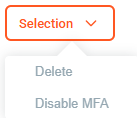
You can perform the following actions on selected users:
- Delete Selected Users: Permanently remove the marked users.
- Disable MFA: Deactivate multi-factor authentication for the chosen users.
These functions enable you to efficiently manage your user base.