Description
Dashboards offer the possibility to graphically display key figures from one or more restaurants.
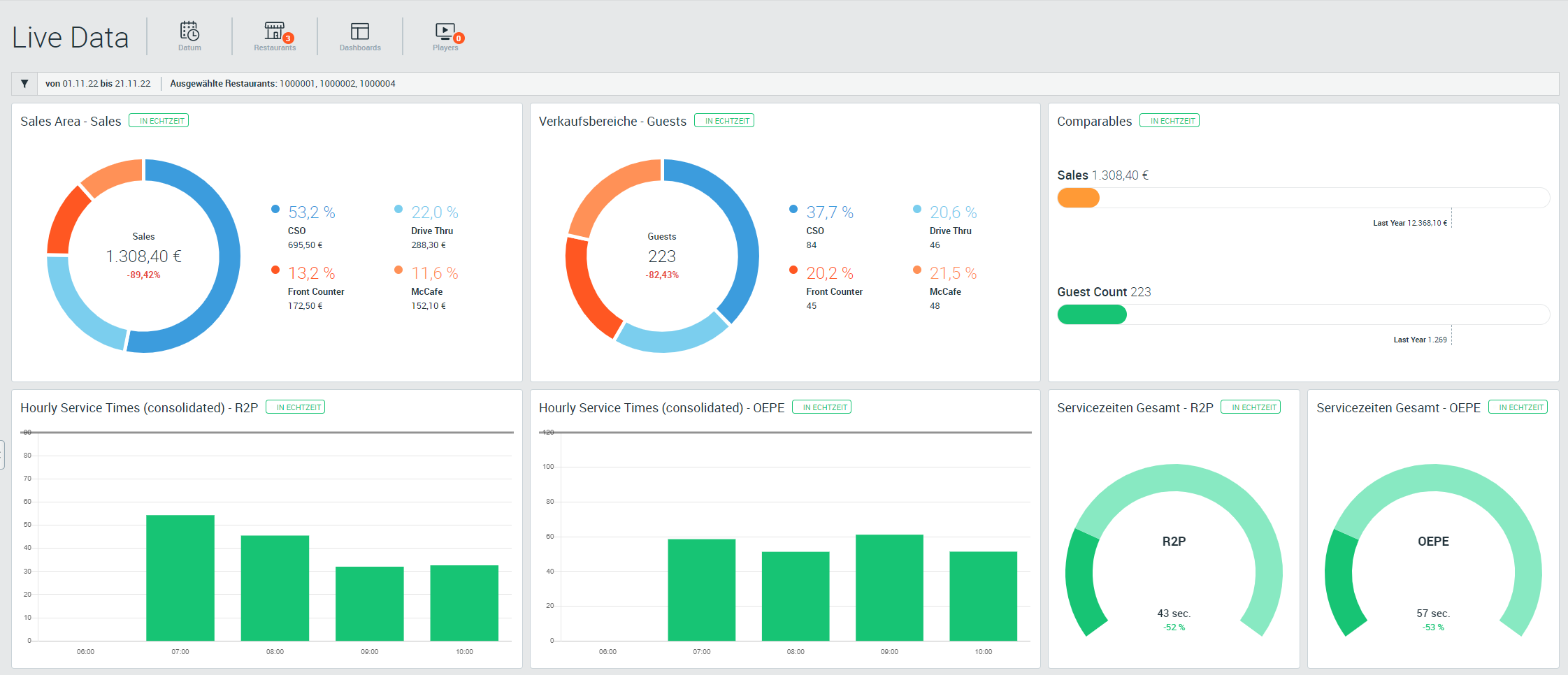
A variety of “widgets” can be accessed. These display the data and can be individually adapted. There are two main groups:
- Live widgets: Show data when Webcockpit Live is activated for a restaurant
- Standard widgets: Show regular data up to the last daily close
Dashboard Management
All users can choose from different types of dashboards:

| Type | Description |
|---|---|
| System default | Dashboards that are predefined by the system and cannot be changed |
| Created by […] | Dashboards that have been created and released by a user from your own organisation. Only the user who created the dashboard can edit it. |
| Private | Self-created and only privately visible dashboards |
Each user can create as many dashboards as desired and switch between them. New dashboards can be created via the “New dashboard” option.
To modify a dashboard, edit mode must be activated. Widgets can then be added or rearranged.
Widget Management
To edit a dashboard, edit mode must be activated.

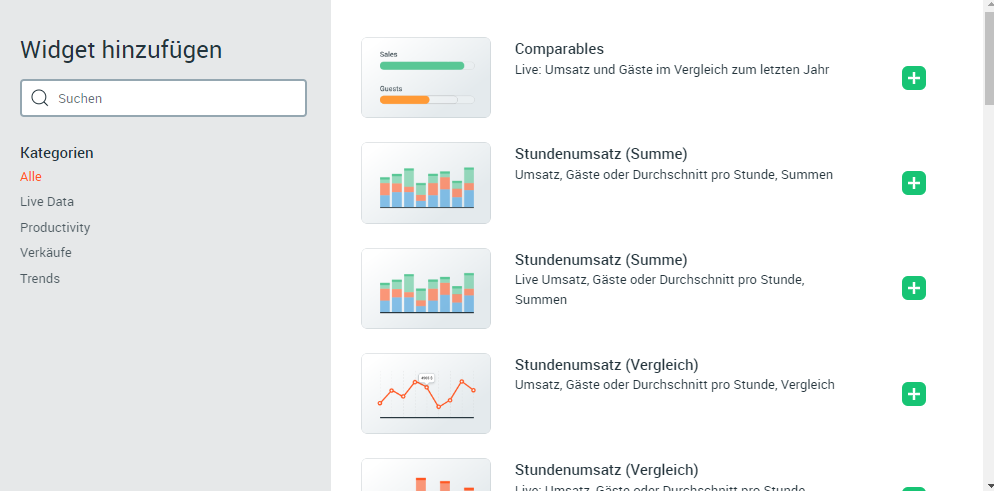
Add widget
New widgets are selected via the “Add widgets” button.
Move widget
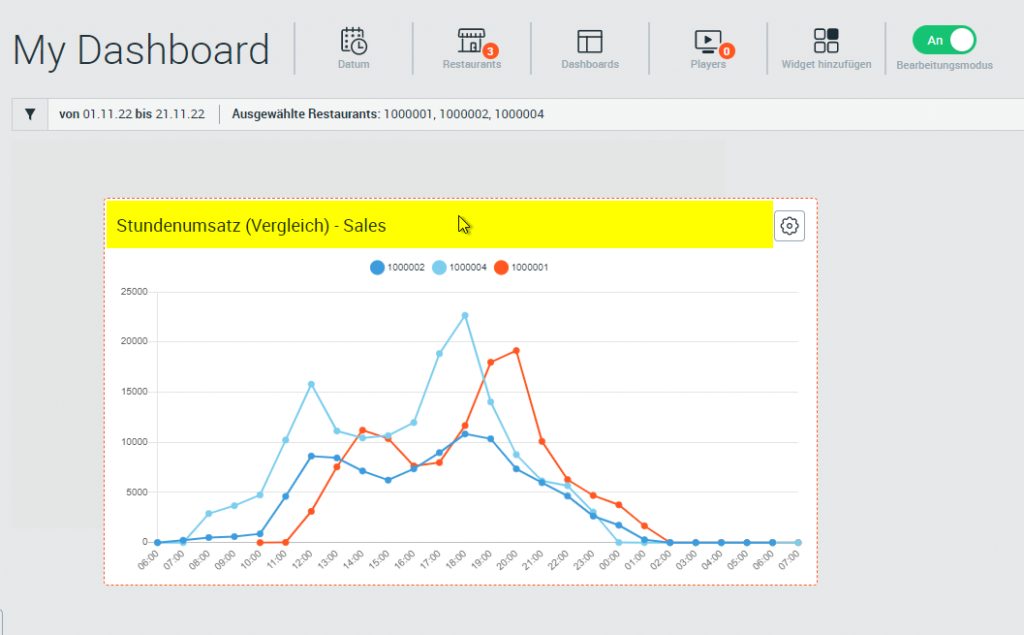
By clicking and holding with the mouse pointer on the header of the widget, they can be repositioned.
Resize widget
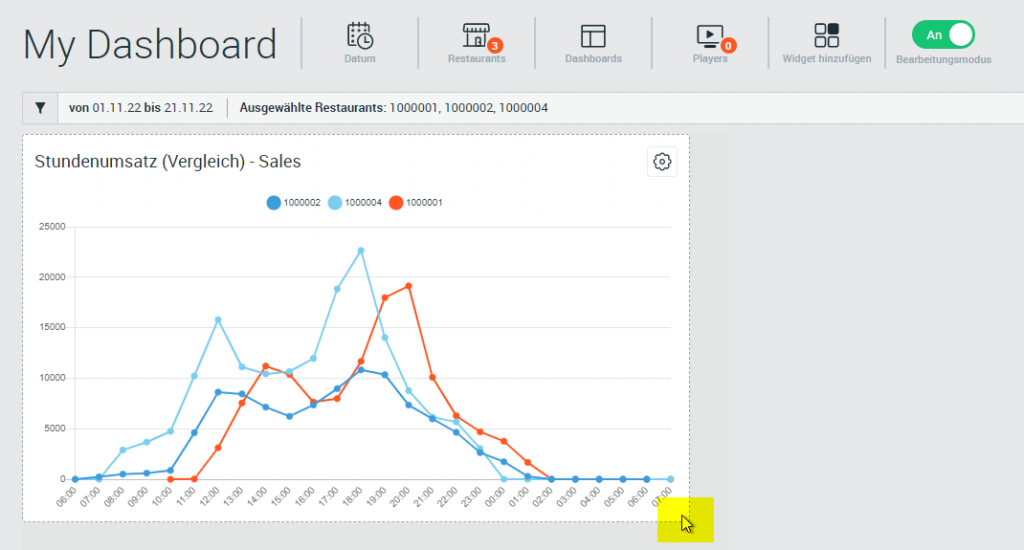
Clicking and holding the mouse pointer on the lower right corner of the widget changes its size. Not all widgets can be resized at will. Some widgets have a minimum width and height that cannot be undercut.
Delete widget
Clicking the gear wheel at the top right edge of the widget and “Remove widget” deletes it.

Edit widget display
By clicking the gear wheel at the top right edge of the widget and “Edit widget”, the options of the widget are displayed.
