Description
Multi Factor Authentication (MFA) is an advanced authentication method that requires the user to provide two or more verification factors in order to gain access to their account.
Starting July 2023 Webcockpit also provides this feature, allowing users to add an extra layer of security to their personal accounts. Once MFA is enabled and configured for a specific account, the user can sign-in in two steps: normal password based login followed by the validation of a one time code received by SMS.
Note: Other second authentication factors like email-link and mobile-token will be supported in the future.
Webcockpit Secure Authentication Overview
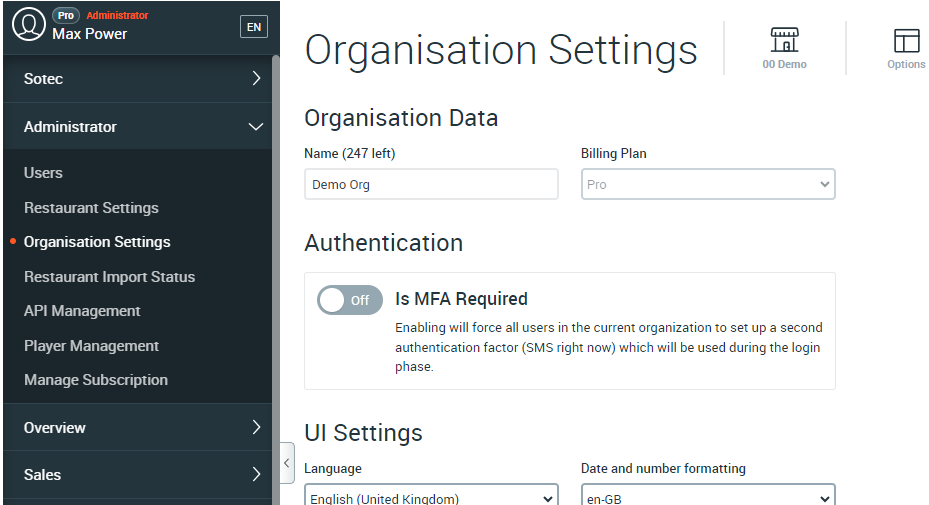
Multi Factor Authentication feature was introduced in Webcockpit to allow the users to increase the security of their accounts. It is up to the user whether or not to activate this option. However, in McDonald’s context, there are situations in which employees must comply with certain security conditions regarding the data they are accessing. For this scenario, Webcockpit offers the Organization Administrators the option to make MFA a requirement for all the users in the organization they manage. This option can be found in the “Organisation Settings” page, under the “Authentication” section.
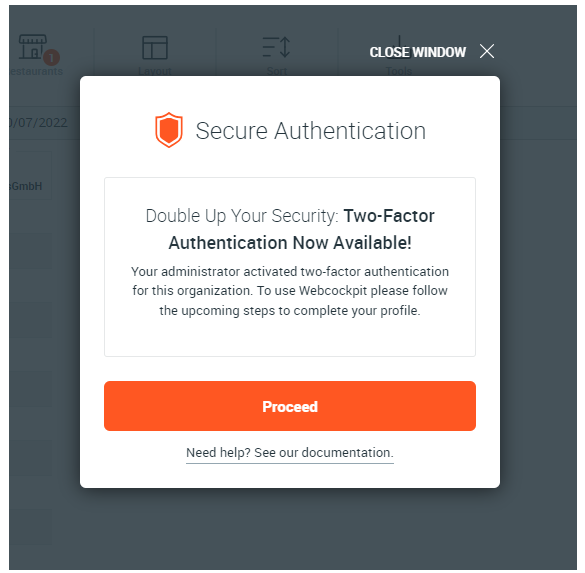
The users in organizations with required MFA will see the notice below, pointing them to the enrollment process. The notice is specifically designed to be annoying, popping up on each interaction with the website, coercing the user to proceed with MFA setup.
Second Factor Enrollment
The process of enabling and setting up a second authentication factor to a specific account is known as Enrollment.
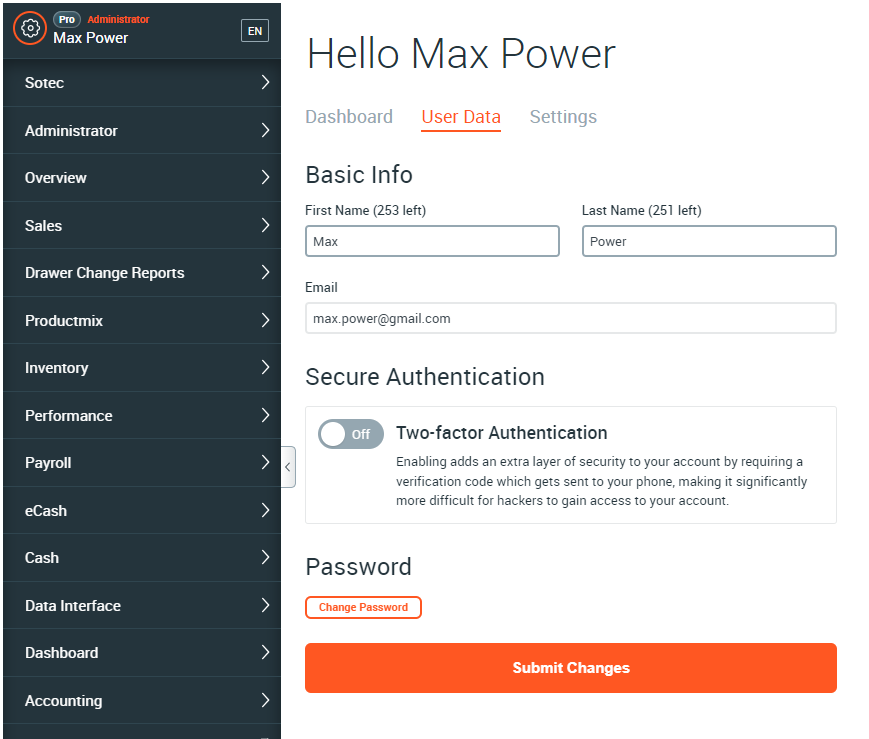
The Secure Authentication configuration section can be found by navigating to the Home page, “User Data” tab. From there MFA can be enabled and a phone number can be linked to the user’s account.
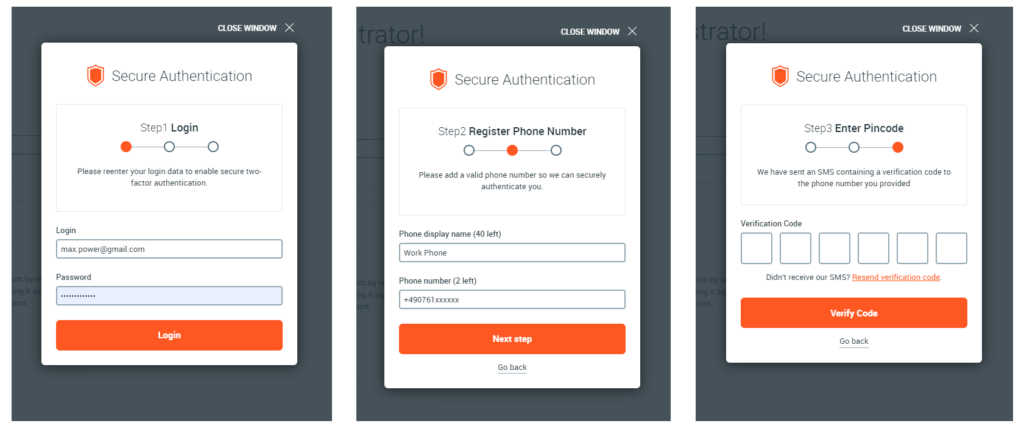
The phone number enrollment process consists of three steps, starting with user identity verification through a new SignIn. If the user manages to log in successfully, he will be asked to register a phone number to receive SMS verification codes in the future. A phone number description can also be added to help the user distinguish between different enrolled numbers.
Note: The provided phone number should be in E.164 format (e.g. of a valid German phone number: +49761xxxxxxx where +49 is the Country-Code, 761 is the Area-Code and xxxxxxx the Local Telephone Number).
The last step is to prove the registered phone number belongs to the user by verifying the OTC (One Time Code) received by SMS.
If because of an infrastructure problem the SMS was not sent to the provided number, there is the option to resend the SMS by clicking the ‘Resend verification code’ link.
Enrollment Prerequisites
There are two preconditions without which it is impossible to complete the enrollment process. A Webcockpit account for which MFA is about to be enabled must have a valid email address associated with it and the email address must be verified.
Note: MFA requires email verification. This prevents malicious actors from registering for a service with an email they don't own, and then locking out the real owner by adding a second factor.
In the past it was possible for an user to log in into Webcockpit with their username and password. This login method is no longer supported being incompatible with the newest security features introduced. Before enabling MFA, the user must undergo the Email Migration process which will let the user change their username to an email they own.
Once the email has been associated with the account it must be verified to prove that the email address really belongs to the user.
If a specific user is required by his organization to set up MFA, then the user should not worry about these preconditions: Webcockpit will point the user to take the necessary steps through notifications.

Manage The Enrolled Factors
Once a second factor has been enrolled, the MFA configuration gets updated in the /Home/Index -> “User Data” tab. The section provides information about the currently enrolled phone number, the contact method and other options like ‘Disable MFA’ entirely and ‘Reset & Change’ the phone number.

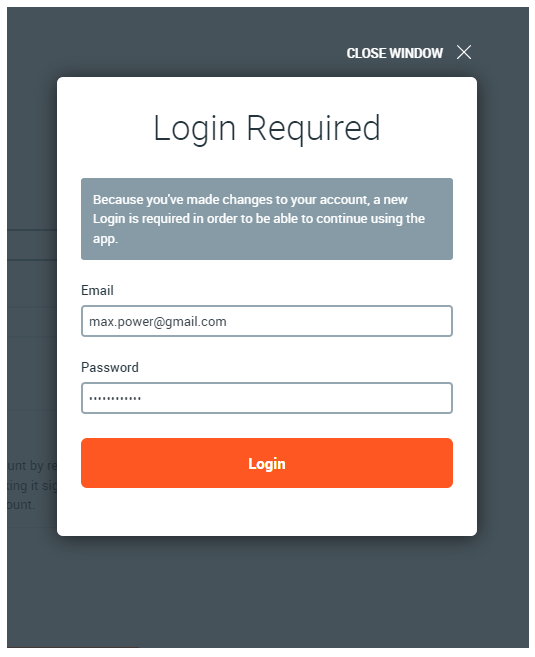
Disabling MFA for the current account will result in the removal of some core user metadata. Because of this, a new login is required in order to continue using the web application. Starting with the July 2023 version, a new In-App Login overlay is available special for cases like this. The overlay will always state the reason for a new login.
Note: If the user rejects the In-App login process, Webcockpit detects an incompatibility in user metadata and will forcibly redirect him to the Main Login Page.
Signing In with Two Factors
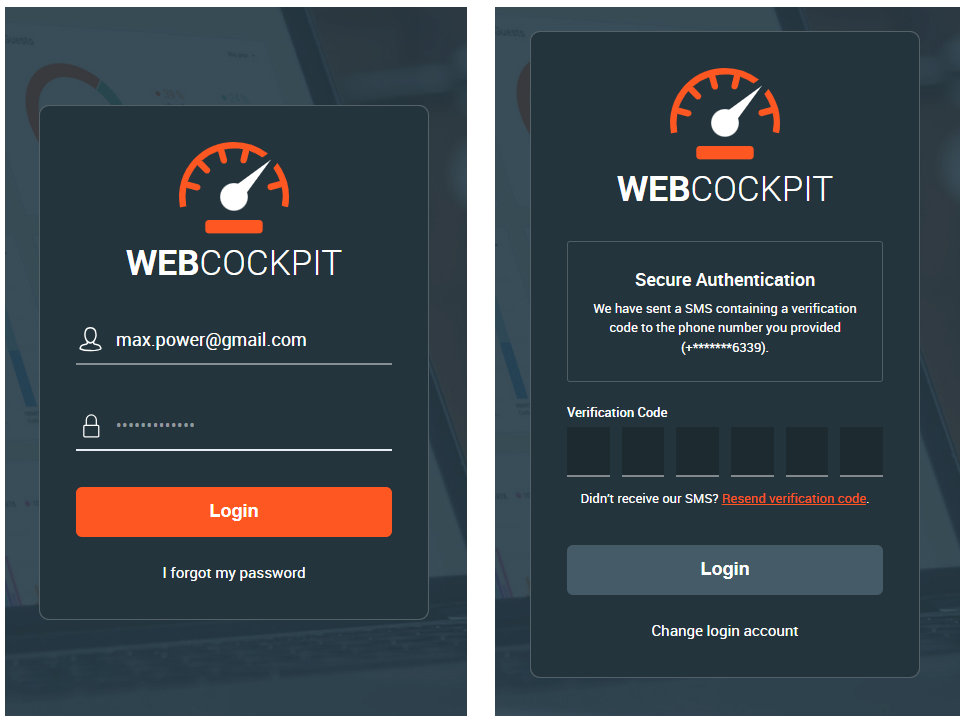
Signing in with an account that has MFA enabled will require the user to verify the One Time Code (OTC) received by SMS in the Second Step. In order to maintain security, the OTC verification phase is mandatory whenever the user logs in, regardless of platform or device (Web-App, Mobile app, ..).
MFA Support In Mobile Devices
Besides the web application, starting with version 4.0 the mobile devices (Android & IOS smartphones, tablets & Apple smartwatches) also have support for Multi Factor Authentication.
Multi Factor Authentication architecture will require an account with a second factor enrolled to verify that factor at sign in time regardless of where the authentication takes place (web browser or mobile device). Because of this, it is expected that users will upgrade the mobile apps to version 4.0 before the enrollment process. Otherwise the users will not be able to log in into the mobile app.
Another change introduced in the Webcockpit mobile app v4.0 is related to username based authentication. For MFA related compatibility reasons the username-password sign in method is no longer supported in the newer version, users having to change their username into a personal email address. Mobile users are persistently notified and asked to undergo the Email Migration process that is part of the web application since August 2022.
