Description
The Daily KPI report is a Pro Feature designed to give you a comprehensive, at-a-glance overview of your most critical key performance indicators (KPIs). This powerful tool enables deep insights and comparative analysis across your operations.
Availability
| Subscription | Pro |
| Scope | All markets |
| Limitation | – |
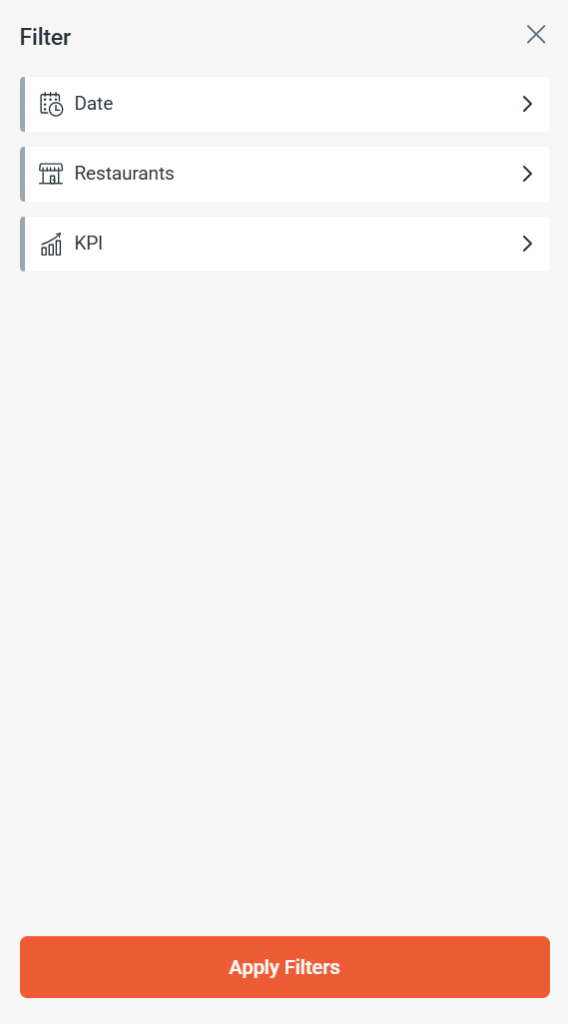
Filter
Date
Choose a custom time span.
Restaurants
Enables the selection of restaurants.
KPI
Select a Layout an choose a KPI.
Export
Export to Excel. A CSV file is then made available to the user in the “Downloads” folder.
Key Capabilities
- Extensive KPI Library: Access and select from over 450 available KPIs across all integrated systems.
- Flexible Layout Selection: Choose your desired KPI from:
- Any of the existing System Default Layouts.
- Any Custom Layouts you have created and saved.
- Multi-Restaurant Comparison: Gain valuable comparative insights by selecting multiple restaurants for your report.
How to Use the Daily KPI Report
Follow these steps to generate your customized report:
- Access the Report: Navigate to the Overview section in your Webcockpit and select Daily KPI.
- Select Your KPI:
- Select the layout that contains the KPI.
- Use the Available Rows search bar or browse the list to find the desired KPI (e.g., Sales, Average Check, Guest Count).
- Choose Your Restaurants:
- Click the Restaurants button.
- Choose one or more Restaurants you wish to include in the report.
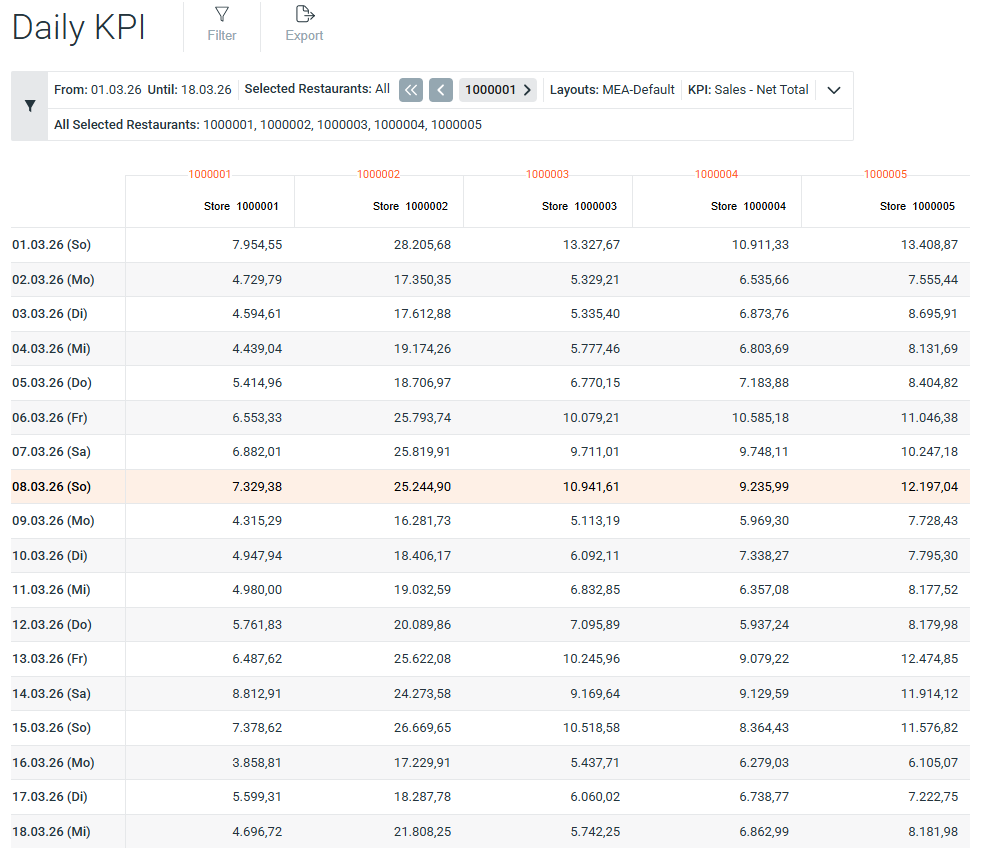
- Note: If you select multiple Restaurants, the selected KPI will be displayed side-by-side for easy comparison.
- Generate the Report: Click the Apply Filters button.
Viewing the Results
Once generated, your report will display the selected KPI(s) in a clear, comparative format.
- Single Restaurant: The selected KPI data for the chosen time period will be shown.
- Multiple Restaurants: Data for the same KPI will be presented in parallel columns, allowing you to quickly spot performance differences and best practices among your Restaurants.
Need further assistance with creating custom layouts or comparing specific KPIs?
For detailed instructions on how to create and manage the Total View Layouts, please refer to our knowledge base article: